Overview
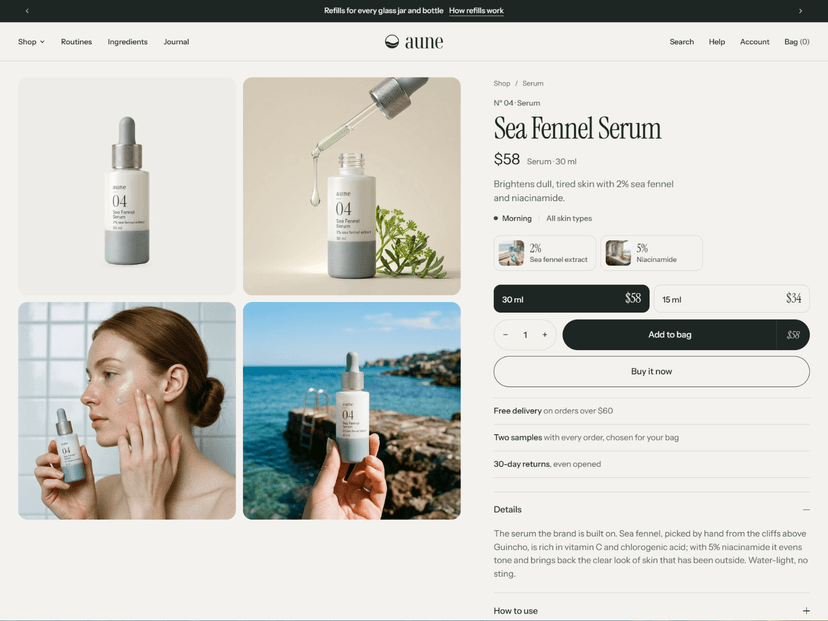
Dais is an Online Store 2.0 theme with a bold, editorial look: two-tone uppercase headings, framed white panels on a soft paper background, a signature product "stage" hero, and a calm, fast shopping flow. It was designed with a footwear demo store, but every section reads your own products, options and metafields, so it works for clothing, home goods, beauty, accessories or anything else.
Highlights
- Every page is built from sections and blocks you can add, remove, reorder and restyle in the theme editor. Every section has the same Layout settings: color scheme, width, side padding, top and bottom space for desktop and mobile, and a Link name so menus can jump to it.
- One design system. Six color schemes, two font pickers, corner radii, button shape, card look and section spacing live in Theme settings and update every page at once.
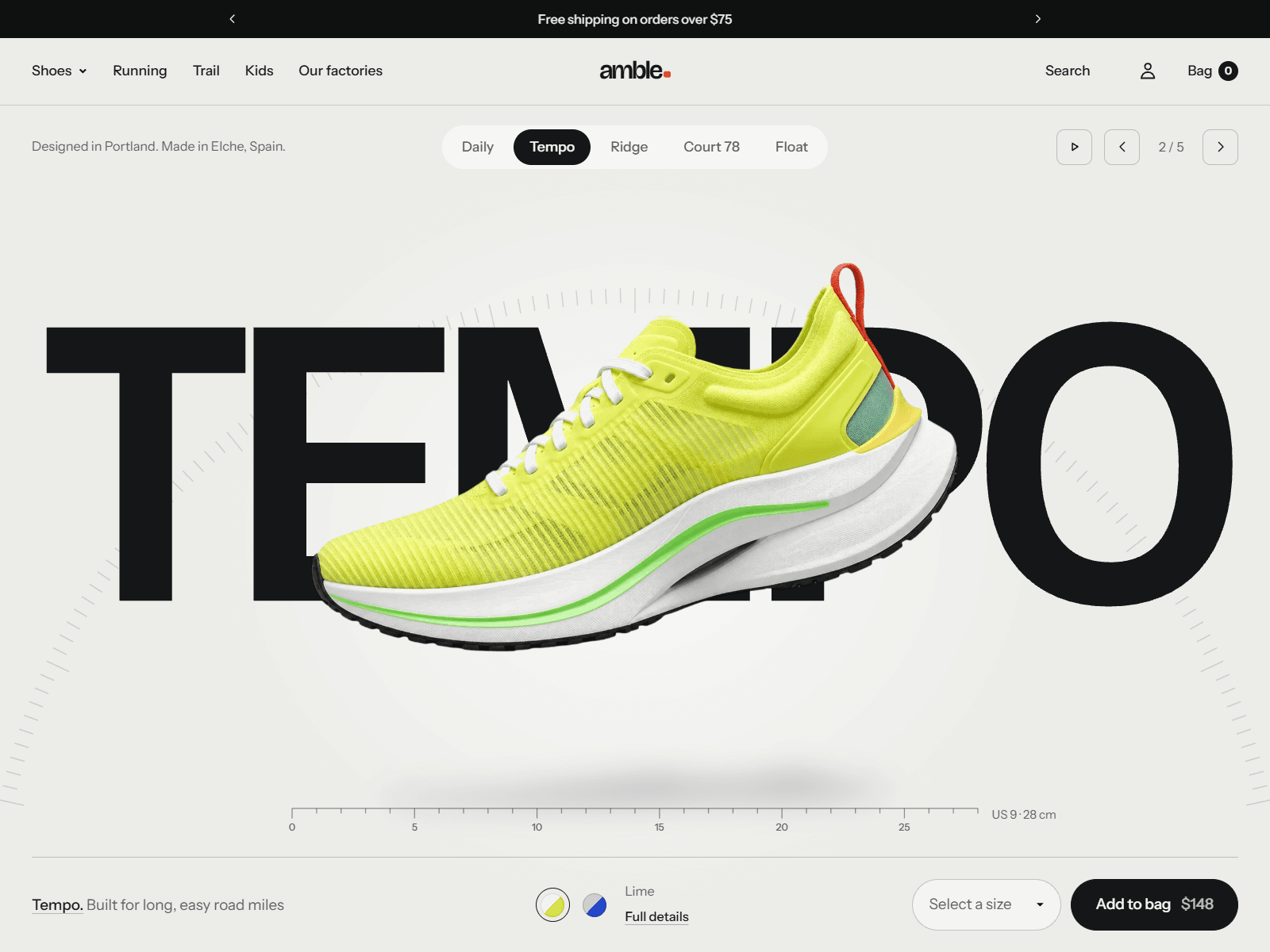
- Product stage hero. A full-screen product carousel with the product name set huge behind the product, color swatches, a size picker and Add to cart. Works with transparent cut-outs or ordinary photos.
- Commerce built in: product pages assembled from blocks, color swatches from Shopify's swatches or a metafield, grouped galleries per color, quick add on cards, a filtering collection page, predictive search, a cart drawer with a free-shipping bar, size guide drawers, pickup availability, Shop Pay Installments, gift cards, customer accounts, blog, contact and FAQ pages.
- App-friendly: app blocks in the header, product page, reviews section, custom section and a dedicated Apps section. Reviews and wishlists come from apps you choose; the theme shows a reviews fallback from a metafield when no app is installed.
- Accessible and fast: keyboard and screen-reader support, visible focus, reduced-motion support, contrast-checked buttons, lazy images with responsive sizes, no JavaScript framework.
Setup guide
Work through these steps once, in order. Each takes a few minutes.
1. Install and preview
- Online Store > Themes > Add theme. Keep your current theme live while you set Dais up.
- Click Customize on Dais. The editor opens on the home page; switch pages with the page picker at the top.
2. Brand
Theme settings > Logo and favicon. Upload a logo, or leave it empty to use your store name as a text logo (with an optional accent dot). Set the logo width for desktop and mobile.
Theme settings > Colors. Dais has six color schemes. Each scheme sets background, surface (cards and panels), media background, text, secondary text, border, accent, buttons and inputs. Every section has a Color scheme setting, so changing a scheme changes every section that uses it.
- Scheme 1 is the page background. Scheme 4 is the dark band used by testimonials and the footer. Scheme 5 is the accent field used by the mosaic feature card.
- Accent buttons automatically use a slightly deeper or lighter accent when needed so their label stays readable.
Theme settings > Typography. Pick a heading font and a body font from Shopify's font library. Headings can be uppercase or as typed, with their own letter spacing, line height and size. Turn on Use display optical size for variable fonts with an optical size axis (the default Bricolage Grotesque has one).
Theme settings > Layout / Buttons / Product cards / Badges. Page width and margins, section spacing, corner radii, button shape and height, and how product cards look (image shape, fit, background, hover, frame, price position, swatches, quick add).
3. Menus
Online Store > Navigation.
- Main menu: top-level links. A link with nested links opens a mega menu; nested links that have their own links become columns. Add a Menu feature card block in the header to show an image card in a mega menu (match it to the top-level link by name).
- Footer: add one or more Menu blocks in the footer and pick a menu for each.
- Collection tabs: on a collection page, Product grid > Tabs menu shows a menu as tabs above the grid. A short menu of your main collections works best.
4. Products and collections
Dais works with plain Shopify product data. These extras make it shine:
| What | Where | Used by |
|---|---|---|
| Option names | Products > Options | Options listed in Theme settings > Product cards > Options shown as swatches (default Color, Colour, Pattern, Finish) show as swatches. The first other option becomes the quick-add choice. |
| Swatch colors | Shopify swatches on option values (recommended), or the custom.swatch_colors metafield (list of colors, one per option value, in order; two per value for two-tone swatches) |
Cards, product page, hero |
| Variant images | Assign an image to each color variant | The gallery groups images per color; the hero and cards switch image with the swatch |
| Short title | custom.short_title (single line text) |
The big word in the product stage hero |
| Card text | custom.card_text (single line text) |
One line under the product name on cards, notes |
| Features | custom.features (list of single line text) |
Feature chips on the product page |
| Specs | custom.specs (list of single line text, each "value · label", for example 240 g · a shoe, US 9) |
Product spotlight and the product details panel (first three) |
| Materials, Care, Fit, Made in | custom.materials (list), custom.care, custom.fit, custom.made_in |
Collapsible rows and detail rows (any metafield works; type its namespace.key) |
| Rating | A reviews app's reviews.rating / reviews.rating_count, or custom.rating_value (decimal) + custom.rating_count (integer) |
Stars on cards and the product page |
| Reviews fallback | custom.review_text (multi-line text) |
Product reviews section when no reviews app is installed |
| Collection title suffix | custom.title_suffix on collections (single line text) |
The grey words after a collection title, for example "Running shoes" |
Create metafield definitions in Settings > Custom data. Turn on Storefront access for each one.
Tags: a product tagged badge:New (or any badge: text) shows that badge on cards when Badges > Custom badge tag uses the badge: prefix.
5. Pages
Create pages in Online Store > Pages and choose a template:
- page.contact: page heading + contact form with contact details.
- page.help: page heading with a contact card, jump links, FAQ sections (each with a Link name like shipping so /pages/help#shipping works) and a contact form.
- page.size-guide: a size finder, how-to-measure panel, size chart table and products with fit notes.
- page.about: a photo band, facts, numbered steps and two story panels.
- page: a page heading and the page's own content.
6. Apps
- Reviews: install any reviews app. Add its app block to the Product reviews section (product template) and, if it offers one, to the product information section for the star rating. Dais reads
reviews.ratingfor card stars automatically. - Wishlist: install a wishlist app and add its app block to the header and product information section.
- Search and Discovery (free, by Shopify): adds filters for color, size, product type and more on collection and search pages, and better product recommendations. Without it, collections filter by availability and price. Tip: if your color option values are combinations ("Black / Chalk"), add a simple list metafield such as
custom.color_family(Black, Blue...) and use it as the Color filter's source; Dais paints filter values that are color names as dots. - Anything else: use the Apps section or the @app slot in Custom section.
7. Customer accounts
Shopify offers two account systems (Settings > Customer accounts):
- Customer accounts (the new default): sign-in, orders and profile are hosted by Shopify and styled from Settings > Checkout and accounts. The header account icon links there. Nothing to set up in the theme.
- Legacy customer accounts: the theme's own sign-in, create account, account, order, addresses, reset and activate pages are used. Their images, headings and perks are editable in the editor (choose the Customer templates in the page picker).
8. Before you publish
- Theme settings > Social media: add your profiles (used by the footer and structured data).
- Preferences: page title and meta description, social sharing image.
- Check the password page (Online Store > Preferences > Password protection) if you launch later.
- Open the store on a phone and walk through: home, a collection, a product, add to cart, checkout.
Section guide
Every section shares the Layout settings: color scheme, width (page, narrow or full), side padding, top and bottom space (desktop and mobile) and Link name. Top and bottom space on desktop is the value on a 1200 px wide screen and grows or shrinks a little with the screen, so sections keep their rhythm on laptops and large monitors. A Link name lets a link jump to the section: Link name shipping on a page makes /pages/help#shipping scroll to it.
Headings are inline rich text: put words in italic to show them in the secondary color (the two-tone look). Heading width (in characters) chooses where a heading wraps.
Header and footer
- Announcement bar: rotating messages with arrows, optional autoplay and a country/language selector.
- Header: logo position, menu, search, account, cart, sticky behaviour (always, hide on scroll down, off), see-through over a first section that supports it. Blocks: Menu feature card (image card inside a mega menu), Mobile menu links (short links at the foot of the mobile menu), app blocks.
- Footer: blocks Service strip item (the row of promises), Brand (logo, line, customer care, social icons), Menu, Text, Email signup, Social media. Each block has its own column width on desktop, tablet and mobile. Policies, payment icons, copyright and localization are footer settings.
Home page and general sections
| Section | What it does |
|---|---|
| Product stage | Full-screen hero: product name huge behind the product, swatches, size picker, add to cart, optional ruler and dial. Slides come from a collection or Product slide blocks (override the word, image and background). Image style: cut-out (floating) or photo (framed). |
| Statement | Big centred sentence with photo pills between the words (Text and Image pill blocks). |
| Featured products | A carousel or grid from a collection or a hand-picked list, with optional heading button. |
| Featured product | One product with its whole buy form (title, price, options, quantity, buttons, description, Custom Liquid and app blocks) beside its gallery. Pick the product in the section settings. |
| Image cards | Large linked image cards (one wide plus smaller ones) from collections or links. |
| Mosaic | Four photo tiles around one feature card (product cut-out on a dial, heading, button). Give linked tiles a Link label. |
| Product spotlight | A framed product panel with feature points, specs and color switcher. |
| Scrolling text | One or two rows of scrolling phrases with optional small images between them. |
| Testimonials | Portrait cards and quote cards in a scrolling row with arrows. |
| Images with facts | Two photos, a heading, text, a button and numbered facts. |
| Rich text | Heading, text, buttons and an image, centred or left. |
| Image with text | Image beside text blocks: Heading, Text, List item (with an optional label like Day 1, or automatic 01, 02), Quote, Big value, Buttons. Optional framed panel. |
| Image banner | Image with text on top or on a panel; heights from small to full screen; separate mobile image. |
| Columns | Columns with image, big value, title, text and link; plain, card or line style; optional numbering; swipe row on mobile. |
| Collage | A large item beside smaller ones: images, products, collections, videos. |
| FAQ | Questions and answers with FAQ structured data. Use several FAQ sections with Link names for a topic page. |
| Email signup | Newsletter form. |
| Video | Shopify-hosted, YouTube or Vimeo video with a cover image. |
| Blog posts / Collection list | Cards from a blog or a set of collections. |
| Custom section | A page builder: add theme blocks (group, columns, heading, text, image, button, spacer, feature, product, collection, accordion, video) and app blocks freely. |
| Custom Liquid / Apps | Your own code, or app blocks. The Apps section also takes Custom Liquid blocks. |
Product page
Product information is built from blocks you can reorder: Badge, Title (with optional price beside it), Vendor, Price (turn off Show price if the title shows it; it still shows Shop Pay Installments), Rating, Text (connect any metafield), Feature chips, Description, Variant picker (swatches as images, dots or text; other options as buttons or a dropdown), Size guide link (a page opens in a side panel; place it beside an option name such as Size or on its own row), Quantity, Buy buttons, Delivery and perks, Pickup availability, Collapsible row (from a metafield, text, list, description or page), Specs, Share, Separator, Custom Liquid, app blocks.
Gallery settings: thumbnails rail or grid, image shape (or adapt to each image), group images by color, zoom, cut-out style for transparent images.
Also on the product template: Product details panel (specs and rows from any metafields, with an image), Product reviews (app block slot; fallback from custom.review_text), Product recommendations (set Products to Related or Complementary: complementary products are the ones you pick per product in the Search and Discovery app, shown as "Pairs well with" in the demo).
Collection, search and cart
- Product grid: collection heading with title suffix, description, breadcrumbs, optional collection image; tabs from a menu; filters panel; sort; columns per breakpoint; load more or numbered pages; Promo tile blocks placed at a position in the grid.
- Search results: the same grid with filters and sort, plus articles and pages.
- Cart: lines, note, free-shipping bar, suggested products; the cart drawer shares the same settings.
Inner pages
| Section | What it does |
|---|---|
| Page heading | Breadcrumbs, heading (empty uses the page title), text and an optional contact card. |
| Page content | The page's own content from the admin. |
| Size finder | Shoppers slide to their measurement and see their size in every system you list. Add Size row blocks from small to large (Up to value + one value per result column). Optional second unit, a two-option toggle with its own note, a button with [size], a ruler drawing (optionally with a foot outline) or your own image. |
| Table | Size charts and spec tables: column headings and rows with | separated cells. |
| Products with notes | Product cards with one note each, read from a product metafield (for example custom.fit). |
| Jump links | A pill bar linking to sections on the same page by their Link name; can stay on screen and highlights the section in view. |
| Contact form | Contact details beside Shopify's contact form, with optional phone and order number fields. |
| Blog posts / Blog post | Blog listing with tag filters and a large newest post; article page with share and comments. |
| Collections list | All collections as image cards. |
| 404 page | Big 404, search and a button, plus any sections below. |
| Password page | Email signup and a password panel, with an image. |
| Sign in, Create account, Reset password, Activate account, Account, Order, Addresses | Legacy customer account pages (see the setup guide). |
Adapting Dais to your products
The demo sells shoes, but nothing in the theme is shoe-specific. Every section reads your products, options, images and metafields, and hides parts it has no data for. This guide shows what to change for a different catalog.
Product images
- Cut-outs or photos. The product stage hero and the mosaic feature card float transparent cut-outs. If your images are photos, set Product stage > Image style to Photo in a rounded frame.
- Image shape. Theme settings > Product cards > Image ratio (square, portrait, landscape or adapt to each image) and Image fit (fill and crop, or show the whole image). Portrait clothing usually looks best at 3:4 with fill; homeware or mixed shapes at square with show the whole image.
- Product page gallery. Product information > Image ratio and Image fit. Choose Adapt to first image when your photos have different shapes, and turn off Float variant images if your images are photos rather than cut-outs.
Options and swatches
- Which options are swatches. Theme settings > Product cards > Options shown as swatches lists option names (default: Color, Colour, Pattern, Finish). Add yours, for example Finish, Material, Scent.
- Swatch colors, in order of preference: Shopify swatches on the option values (Products > edit an option > value swatch), which support colors and images; then the
custom.swatch_colorsmetafield, one color per value in option order (two per value for two-tone); then a value named like a color (Black, Navy, Light Blue), which paints itself. Otherwise the swatch shows the first letters of the value, or the variant image on the product page. - The other option. The first non-swatch option (Size, Scent, Length...) becomes the quick-add choice on cards and the picker in the hero. Products with a single variant add straight to the cart; products with three or more options link to the product page.
- Many variants. Cards show the first few swatches and a "+N" count (Theme settings > Product cards > Most swatches shown).
Size guides
- Size guide link > Option name decides which option the link sits beside (Size by default; list several names for other languages). Products without that option hide the link.
- Use a different page per product type: create product templates (for example product.apparel) with their own size guide page, or connect the size guide page setting to a page metafield.
- Build the guide page with the Size finder (any measurement: chest, waist, foot, ring, wrist) and a Table for the chart. Turn off the ruler's foot outline for non-footwear.
Words in the demo
Headings, button labels and texts in the demo templates are examples. Change them in the editor; nothing is hard-coded. Theme strings (buttons, cart, accessibility labels) are in Online Store > Themes > Edit default theme content, for example change "Bag" to "Cart".
Metafields you might not need
Short title, Card text, Features, Specs, Materials, Fit, Care and Made in are all optional. Blocks and rows that read them hide when they are empty. Collapsible rows and detail rows accept any metafield by namespace.key, so you can show custom.dimensions, custom.ingredients or custom.burn_time instead.
Checklist for a new catalog
- Product cards: image ratio and fit.
- Product page: gallery ratio and fit, which blocks you need (remove Size guide or Feature chips if unused).
- Options shown as swatches.
- Product stage: image style, slides (collection or Product slide blocks).
- Size guide pages per product type, or remove the block.
- Replace demo copy in the editor.
FAQ
The header is see-through on some pages and solid on others.
The header becomes see-through only over a first section that supports it (Product stage, Image banner set to full width, Page heading, 404). Turn it off in Header > See-through header.
My hero images float on a grey box.
The product stage expects transparent cut-outs. Use PNG or WebP images with a transparent background, or set Image style to Photo.
Swatches show letters instead of colors.
Add Shopify swatches to the option values, fill the custom.swatch_colors metafield, or name values with colors browsers know (Black, Navy, Olive). See Adapting Dais above.
There are no color or size filters on my collection pages.
Install Shopify's free Search and Discovery app and add the filters you want there. Without it Shopify offers availability and price.
Where do I add reviews or a wishlist?
Install an app, then add its app block: reviews in the Product reviews section, wishlist in the header and product information. The theme does not store reviews or wishlists itself.
The sign-in pages look different from the theme.
Your store uses Shopify's customer accounts, which Shopify hosts. Style them in Settings > Checkout and accounts. The theme's own account pages are used only with legacy customer accounts.
A link to a section on a page does not jump.
Give the target section a Link name in its Layout settings and use the same word after # in the link.
Can I hide the scrollbar?
Theme settings > Layout > Hide the page scrollbar (on by default). The page still scrolls with the wheel, trackpad, touch and keyboard.
How do I turn off animations?
Theme settings > Animations. Visitors who ask their device to reduce motion always get the still version.
Support
How to get help
Use the Visuvate contact form or email contact@visuvate.com, and mention that your question is about the Dais theme. Please include:
- Your first and last name and email address
- Your store URL (for example
your-store.myshopify.com) - The page where you see the issue and what you expected to happen
- Screenshots if you can (attach them to an email to contact@visuvate.com)
You get an automatic confirmation by email when the form is sent. We reply within two business days, Monday to Friday.
Support policy
Support covers the theme as it is shipped:
- Questions about settings, sections, blocks and templates
- Bugs in the theme's code (broken layouts, links or logic), fixed in a theme update
- Help understanding how the theme works with Shopify features such as filters, markets, accounts and checkout
Support does not cover:
- Custom code changes or design customizations
- Setting up or fixing third-party apps (we help when an app's block doesn't display as the app describes)
- Help updating a theme whose code you have edited
These services are not included in the price of the theme.
Editing the theme's code
Dais is built to be changed from the theme editor without code. If you do edit the code:
- Duplicate your theme first (Online Store > Themes > ... > Duplicate) and edit the copy, so you can go back.
- Keep a note of what you changed, because theme updates don't carry code edits over.
- For larger changes, consider hiring a Shopify Partner: shopify.com/partners/directory.
Custom tutorials for code changes are not offered.
Release notes
1.0.0 (2026-10-26)
First public release.
- 50+ sections including the Product stage hero, Statement, Mosaic, Product spotlight, Scrolling text, Testimonials, Images with facts, Size finder, Table, Products with notes, Jump links, Contact form, Featured product and a Custom section page builder with 12 theme blocks.
- Theme settings: logo, six color schemes, typography with optical sizing, layout and fluid section spacing, buttons with contrast-safe accent buttons, product cards, badges, cart, search, currency, animations, social media.
- Product page from blocks with grouped galleries, swatches, size guide drawer, quantity, pickup availability, Shop Pay Installments, reviews fallback, related and complementary ("Pairs well with") recommendations.
- Collection and search pages with tabs, filters, sort, promo tiles, collection image and load more.
- Custom Liquid blocks everywhere app blocks are allowed: header, product page, reviews section, Apps section and Custom section.
- Page templates: contact, help, size guide, about; blog and article; collections list; 404; password; gift card; legacy customer account pages.
- Accessibility: WCAG 2 AA checks clean on home, product, collection and size guide pages, touch targets of 24 px or more.