Overview
Documentation for Shoal, a Shopify theme by Visuvate. These pages are published at https://visuvate.com/blog/shoal-shopify-theme-documentation.
Before you edit the theme
- Always duplicate the theme before changing settings in bulk or editing code: Online Store > Themes > ⋯ > Duplicate.
- Code edits aren't covered by support. If you need custom work, hire a Shopify Partner.
Getting started
Install the theme
- In your Shopify admin, go to Online Store > Themes and add the theme from the Theme Store.
- Select Customize to open the theme editor. The home page, product page and collection page already have their sections in place. Images show as placeholders until you add your own.
- Before you publish, work through the store setup below so product pages, filters and the routine finder have the data they read.
Theme settings
Open Theme settings (the paint brush icon in the theme editor).
Logo and favicon
- Logo: any aspect ratio works. Use Logo width on desktop, Logo width on mobile and Maximum logo height to size it. Without a logo, the header shows your store name.
- Favicon: a square image, at least 32 × 32 px.
Colors
The theme has five color schemes. Each scheme sets a background with its matching text, secondary text, lines and borders, image and card background, accent, and two button styles. Every section has a Color scheme setting, so changing a scheme here updates every section that uses it.
Keep text at a 4.5:1 contrast ratio against its background (3:1 for large headings, icons and form field borders). The default schemes meet these ratios.
Typography
- Headings: font, size, and Use italic for heading accents (headings can start a new italic line with the heading block setting "Start italic text on a new line").
- Body: font and size. Bold and italic styles load automatically.
Layout
Page margin on desktop, Image corner radius and Button corner radius.
Animations
- Reveal sections on scroll: sections fade in as they enter the screen.
- Use smooth scrolling
- Show page transitions
- Use custom cursor: desktop only.
Animations never run in the theme editor, and they're turned off for visitors who ask their device to reduce motion.
Cart
- Cart type: a drawer that slides in, or the cart page.
- Drawer color scheme, Show order note.
- Show free shipping progress: set Free shipping from to your threshold, and the two texts shown below and above it.
- Empty cart: heading, text, link, and a collection of suggested products.
Search
Show results while typing turns on predictive search in the header search panel. Show product prices adds prices to those results.
Currency format
Show currency codes prints prices as "$58 USD". Turn it on if you sell in more than one currency.
Social media
Add the full URL of each account. Icons show in the footer's Social media block for every account you fill in.
Store setup the theme reads
Product metafields
Create these in Settings > Custom data > Products. Turn on Storefront access for each. Every one is optional: a product without the value simply hides that line.
| Namespace and key | Type | Used for |
|---|---|---|
aune.number |
Integer | The product number, shown as "Nº 04" on cards, product pages and the Numbered products section. |
aune.step |
Single line text | The routine step, such as "Serum". Falls back to the product type. The Routine finder matches steps with it. |
aune.benefit |
Single line text | One-line benefit under the title on cards and the product page. |
aune.highlights |
List of single line text | The Highlights block, for example "Morning and evening". |
aune.actives |
List of single line text | The Actives block and card actives line. Write text as "2% Sea fennel extract": the theme splits the dose from the name. |
aune.active_images |
List of files | Optional images for the Actives block, in the same order as aune.actives. Actives without one use the block's Image for other actives. |
aune.contents |
List of products | For a set: the products in it. The Set contents block lists them with their prices and the saving. |
aune.sets |
List of products | The sets a product is part of, linked by the Also in sets block. |
aune.how_to_use |
Rich text or multi-line text | A Collapsible tab with Content set to "How to use". |
aune.ingredients |
Multi-line text | A Collapsible tab with Content set to "Actives and ingredient list". |
Blog posts can also use aune.products (List of products): the products shown in the Products in post section.
Ingredients
The Ingredient index and Ingredients sections use Ingredient blocks: add one per ingredient with its name, Latin name, image, short line, origin and benefit. Give the Ingredient index the same names, so its links jump to the right row. In the Ingredients section, Products shown: Products that contain it finds the products whose aune.ingredients text names the ingredient's Latin name, so you don't have to pick them by hand.
Product tags
| Tag | What it does |
|---|---|
label:Reserve |
Adds a label pill on cards and next to the product number. Any text after label: works. |
badge:New |
Adds a badge on product cards. Sale and Sold out badges are automatic. |
skin:dry, concern:redness, time:am (any words) |
Used by Routine finder answers ("Recommend products tagged"). |
Menus
- The header uses main-menu. Nested links become the mega menu: top-level links are the bar, second-level links are column headings, third-level links are the column lists. Add Menu feature blocks in the Header section to show an image card in a panel.
- The footer's Menu blocks default to footer. Add more Menu blocks for more columns.
Filters
Collection and search filters come from the Search & Discovery app (free, by Shopify). In Filters, add Availability, Price, Product type, Vendor and your product options (for example Size). The theme shows whatever filters the app has turned on.
If a filter shows on search but not on a collection, Shopify is still indexing it. It can take up to 48 hours; editing and saving one product in the collection starts it again.
Product recommendations
- Related products are automatic.
- Complementary products ("Complete the routine") are set per product in Search & Discovery > Product recommendations.
Gift cards
Create a gift card product in Products > Gift cards. The product page shows a recipient form when Show recipient form for gift cards is on in the Buy buttons block.
Sections
Every section has a Color scheme and, in most cases, Top padding and Bottom padding. Padding is the size on a wide screen and scales down on smaller ones. Side padding sets the space at the left and right: Page margin (the width in Theme settings > Layout), None (edge to edge) or Custom, with its own Left padding and Right padding. On phones the side padding never goes wider than the page margin.
Headings can be moved and resized too:
- Heading layout (Featured collection, Collection list, Blog posts, Collage, Ingredient list, Product numbers, Video, Article products, Multicolumn): Text beside heading, Text below heading or Centered.
- Text alignment (Image with text, Image with products, Collection spotlight, FAQ, Contact form, Feature list, Routine, Routine quiz, Timeline, Page header): left, center or right for the heading, text and button blocks.
- Heading size and Heading alignment (collection, search, page, article, blog, collections list and cart pages, plus Related products, Complementary products and Apps): size as a percentage of the theme's heading size, aligned left or center.
- Heading blocks keep their own Size (Small, Medium, Large); Image banner, Slideshow, Rich text and Quote already have their own position and alignment settings. Most sections are built from blocks: drag blocks to reorder them, and use the eye icon to hide one.
Many sections share three blocks:
- Heading: text, Size (Small, Medium, Large, Extra large) and Start italic text on a new line, which puts the words after a line break in italics.
- Text: a short paragraph.
- Button: label, link and Style (Arrow button, Primary, Secondary, Underlined link). Write
[count]in a label to show the number of products.
Header and footer
Announcement bar
Add an Announcement block per message, each with optional link. With two or more, turn on Rotate announcements and set Time per announcement.
Header
- Menu is the main menu. Nested links become the mega menu (see Getting started > Menus).
- Menu feature blocks add an image card to a mega menu panel. Set Show under menu item to the top-level link's title. Menu note adds a short line at the bottom of a panel.
- The Button label and Button link add the "Shop all" button next to the menu.
- Show header over the first section makes the header transparent over a full-width first section on the home page. Set the text colors for desktop and mobile so they read on your image.
- Show country/region selector and Show language selector appear when your store sells in more than one country or language.
Footer
Blocks: Email signup, Menu, Text, Social media (icons from Theme settings, plus Show Follow on Shop) and Highlight. Section settings add the large wordmark, copyright, policy links, payment icons and selectors.
Home page and content sections
Image banner
A full-width or inset image with text. Use the Call to action preset for a closing banner.
- Height: from small to full screen. A full screen banner at the top fills the screen under the header.
- Content position, Image overlay and Show film grain control how text sits on the image.
- Mobile image and Mobile text color scheme let phones use a different crop and text color.
- Blocks: Heading, Text, Button (with Detail, for example "[count] formulas"), Caption (small corner text), Wordmark (large brand name fitted to a width), Product card (a frosted card that cycles through the chosen products).
Slideshow
Add a Slide block per slide: image, mobile image, heading, text, button and overlay. Change slides every sets autoplay; visitors can pause it. Give the slideshow an Accessible name for screen readers.
Image with text
Image beside text. Choose Image position, Image width and Image ratio. Add a Second image for an overlapping pair. Blocks: Caption, Heading, Text, Button, List item (title and text rows).
Image with products
A large image with up to three frosted Product card blocks over it, plus heading, text and button.
Rich text
Heading, text and buttons on a plain background. Layout can place the button beside the text.
Multicolumn
Columns with image, heading, text and link. Mobile layout chooses swipe, stack or grid. Turn off Show image placeholders for text-only columns.
Featured collection
Products from one collection as a grid or a swipe row. Card options: second image on hover, quick add, benefit and actives, vendor.
Featured product
A full product form on any page, built from the same blocks as the product page (title, price, variant picker, buy buttons, media and more). Supports app blocks.
Numbered products
Product cards with the product number behind a cutout image. Add a Product block per card; upload a transparent PNG as Cutout image for the best result. Label and Detail default to the step and actives.
Collection spotlight
A collection panel with image, heading, text and the products. Write [count] in text for the number of products and [price] in the button label for the lowest price. Feature blocks add short highlights; Product blocks show cutouts.
Routine
Up to three routines as tabs (for example Morning and Evening). In each Routine block, pick an image, the products for each step, and optionally a Set product: the button then adds the set and shows the saving. Without a set product, the button adds every step.
Collection list
Collection cards. Add a Collection block per card; the image falls back to the collection image.
Collage
A mosaic of Image, Product and Collection tiles. Large tile position picks which side holds the big tile.
Video
An uploaded video or a YouTube or Vimeo link, with a cover image. Play uploaded video in the background turns it into a muted looping background with a pause button. Add a Video description for screen readers.
Newsletter
An email signup form. Subscribers are added to your customer list with email marketing on.
Contact form
Name, email, optional phone and message, plus extra fields: Dropdown field, Text field and Consent checkbox blocks. Contact detail blocks list addresses, phone numbers or hours beside the form. Messages go to your store's sender email.
FAQ
Add a Question block per question. Keep one answer open at a time makes it an accordion. Add FAQ structured data for search engines marks it up for Google. Table row blocks add a table under the questions, for example shipping rates.
Blog posts
The latest posts from one blog, with image, tag, date and excerpt options.
Featured blog post
One post shown large with image, tag, reading time and date. Pick a post, or a blog to show its latest post.
Quote
A large quote with attribution.
Feature list
A list of short items (title and text), for example "What we leave out".
Timeline
Event blocks with a year or date, title and text.
Page header
A page title band with text, buttons and Jump link blocks. A jump link scrolls to a section on the same page: set that section's Link name (on FAQ and Contact form) and choose it in Section on this page.
Ingredient index
Jump chips that link to each ingredient in an Ingredients section on the same page.
Ingredients
Ingredient rows or cards, one Ingredient block each. Use Start with ingredient and Number of ingredients to split them across two sections, for example three large rows and then cards. Products shown: each ingredient's own product list, or Products that contain it (products whose ingredient list, metafield aune.ingredients, names the ingredient's Latin name or its genus), in product number order.
Routine finder
A short quiz that builds a routine.
- Add a Question block, then its Answer blocks right after it. Repeat for each question.
- On each answer, list the tags to favor (Recommend products tagged) and to avoid (Leave out products tagged). Leave out routine steps skips steps, for example SPF for an evening routine.
- Routine steps maps step names to product steps or types, one per line, for example
Treat: serum, mask, eye care. - Products to choose from is the collection the quiz picks from (it reads up to 50 products).
The result shows one product per step, the total and a button that adds the routine to the cart. Link to the page with ?answer= and an answer to the first question, for example /pages/routine?answer=dry, to start with that answer chosen.
Custom section
Build your own layout from blocks, like a page builder. Start from a preset: Custom section (heading, text, button), Text and image, Three columns or Heading and buttons. Section settings: Width (page, narrow or full width), Maximum width for the narrow column, Side padding (page margin or custom left and right), Alignment, Gap, Color scheme and padding.
- Group: holds other blocks and stacks them Vertical or Horizontal (a row). Set Alignment, Position, Gap, Width (Fill, Fit content or a custom %), Minimum height, its own Color scheme, Corner radius, padding and a Link that makes the whole group clickable. Horizontal groups stack on phones unless you turn off Stack vertically on mobile. Groups can go inside groups.
- Columns: every block inside becomes a column. Set Columns on desktop (1 to 6, tablets show up to two), Columns on mobile, Vertical alignment and the gaps. Put a Group in a column to stack several blocks in it.
- Heading, Text (body, large, small or quote), Image (shape, width, rounded corners, link), Button (primary, secondary, rounded with arrow or underlined link) and Spacer (size on desktop and mobile, optional divider line).
Custom Liquid
Add Liquid, HTML or app snippets. Turn off Use page margins for full-width code.
Apps
Holds app blocks, such as product reviews. Hidden on the store until it has an app block.
Product page
Product information
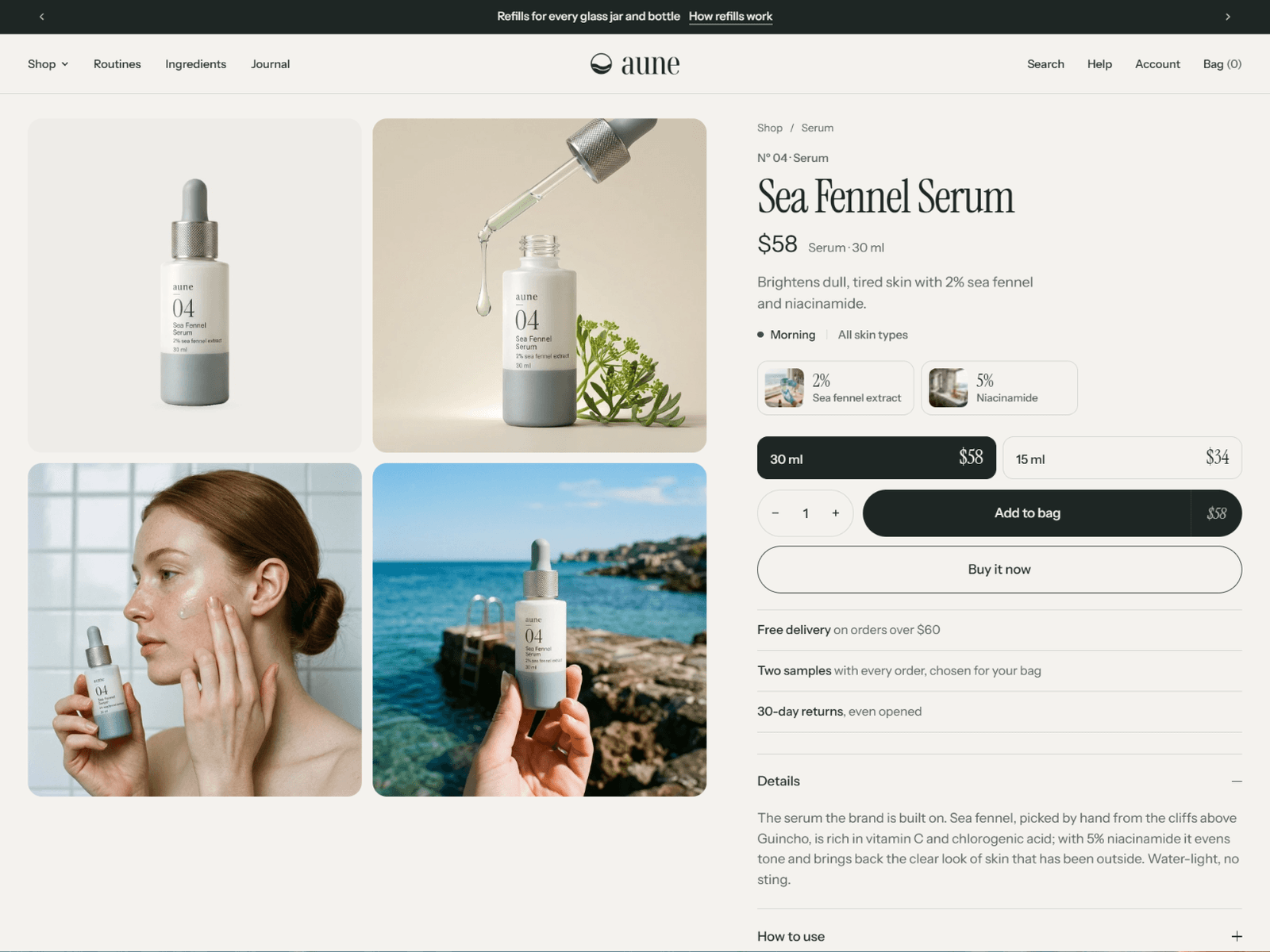
The main product section. Every element is a block you can reorder or remove: Breadcrumbs, Number and step, Title, Vendor, Product rating, Price, Unit price, Shop Pay Installments, Description, Highlights, Actives, Set contents, Variant picker, Quantity selector, Buy buttons, Pickup availability, Perks, Collapsible tab, Also in sets, Share, Text, Custom liquid and app blocks.
- Actives: dose and name from
aune.actives, with images fromaune.active_images(a list of files in the same order). Image for other actives and Second image for other actives cover actives without their own image. - Set contents: for set products, lists the products in metafield
aune.contentswith their full-size prices, and (with Show savings) the saving against buying them one by one. - Also in sets: "Also in [sets], at a lower price." linking the sets in metafield
aune.sets. - Desktop layout, Image shape and Crop images to fill the frame set the gallery. Images open full screen on click; videos, YouTube, Vimeo and 3D models are supported.
- Assign a variant image in the admin and it moves to the front when that variant is chosen.
- Variant picker styles: tiles with prices, buttons, dropdown or swatches.
- Buy buttons show the dynamic checkout buttons by default, and the gift card recipient form for gift cards.
- Show a buy bar after scrolling past the button adds a slim bar with the price and Add to cart.
Complementary products
"Complete the routine": the current product plus the products paired with it in Search & Discovery, with the total and an "Add all" button. Hide on sets (on by default) keeps it off set products, which list their own contents.
Related products
Automatic recommendations from Shopify.
Collection and search
Product grid
The collection page. Filters come from the Search & Discovery app and show in a left column (a bottom sheet on phones). Sorting, a product count and "Load more" pagination are built in. Promo tile blocks add an image or product tile after a chosen product on the first page.
Search results
The same grid and filters for search, plus matching blog posts and pages.
Collections list
All collections, with card style, image ratio, description and product count options.
Blog
Blog posts list
The blog page: tag filter, the latest post shown large, a grid and "Load more".
Blog post
The article: breadcrumbs, excerpt, date, author, reading time, featured image, tags and comments (when comments are on for the blog).
Products in post
Products from the post's aune.products metafield, or the products chosen here.
Next post
A card linking to the next post.
Other pages
Cart
The cart page: lines, quantity, discounts, note, free shipping bar, checkout and dynamic checkout buttons. The free shipping bar, note and empty cart text are in Theme settings > Cart.
Page
The default page content with three layouts and an optional list of the page's headings.
Password page
The page visitors see while your store is password protected: background image, heading, email signup and the password form. The message is set in Online Store > Preferences.
FAQ
Why do my sections show gray placeholder images?
Images from the theme's demo store don't come with the theme. Select the section in the theme editor and choose your own image. Until then, the section shows a placeholder so you can see the layout.
How do I change the colors?
Go to Theme settings > Colors and edit a color scheme. Every section that uses that scheme updates. To change one section only, pick a different Color scheme in that section's settings.
Can I use my own font files?
No. Theme Store themes use fonts from Shopify's font library, which load fast and are licensed for every store. Pick a heading and body font in Theme settings > Typography.
The product number, step or actives don't show on my products.
They come from product metafields (aune.number, aune.step, aune.actives and others). Create the definitions in Settings > Custom data > Products, turn on storefront access, and fill them in on each product. See Getting started > Product metafields.
My collection page has no filters, or fewer than the search page.
Filters come from the free Search & Discovery app. Install it and add filters in Search & Discovery > Filters. If they appear on search but not on a collection, Shopify is still indexing that collection; this can take up to 48 hours. Saving a small change to a product in the collection restarts it.
How do I turn off the animations?
Go to Theme settings > Animations and turn off Reveal sections on scroll, Use smooth scrolling and Show page transitions. Visitors who set their device to reduce motion never see them.
How do I use a cart page instead of the drawer?
Theme settings > Cart > Cart type > Page.
Where do I set the free shipping amount?
Theme settings > Cart > Free shipping from. The theme only shows the progress bar; the actual shipping rates are set in Settings > Shipping and delivery.
How do I add product reviews?
Install a reviews app that supports app blocks and the standard product rating metafield. Add the app's block to the Apps section on the product page, and add the Product rating block to Product information for the stars under the title.
How does the routine finder pick products?
Each answer adds or removes product tags. For every routine step, the finder picks the available product that matches the most chosen tags, from the collection set in Products to choose from (up to 50 products). See Sections > Routine finder.
How do I show a different mega menu image?
Add a Menu feature block to the Header section and type the top-level menu item's title in Show under menu item.
Why doesn't the header show over my image on other pages?
The transparent header works over a full width Image banner placed first on the page. Check Show header over a full width image banner at the top of other pages in the Header section.
How do I translate the theme's fixed text?
Go to Online Store > Themes > ⋯ > Edit default theme content. Text you typed into sections and blocks is translated with the Translate & Adapt app.
Can I edit the theme code?
Yes, but duplicate the theme first, and know that code changes aren't covered by support. Updating to a new theme version doesn't carry code edits over.
How do I update to a new version?
When an update is available, Shopify shows it in Online Store > Themes. Adding the update creates a new copy with your settings and content; publish it when you're ready.
Support
How to get help
Use the Visuvate contact form or email contact@visuvate.com, and mention that your question is about the Shoal theme. Please include:
- Your first and last name and email address
- Your store URL (for example
your-store.myshopify.com) - The page where you see the issue and what you expected to happen
- Screenshots if you can (attach them to an email to contact@visuvate.com)
You get an automatic confirmation by email when the form is sent. We reply within two business days, Monday to Friday.
Support policy
Support covers the theme as it is shipped:
- Questions about settings, sections, blocks and templates
- Bugs in the theme's code (broken layouts, links or logic), fixed in a theme update
- Help understanding how the theme works with Shopify features such as filters, markets, accounts and checkout
Support does not cover:
- Custom code changes or design customizations
- Setting up or fixing third-party apps (we help when an app's block doesn't display as the app describes)
- Help updating a theme whose code you have edited
These services are not included in the price of the theme.
Editing the theme's code
Shoal is built to be changed from the theme editor without code. If you do edit the code:
- Duplicate your theme first (Online Store > Themes > ... > Duplicate) and edit the copy, so you can go back.
- Keep a note of what you changed, because theme updates don't carry code edits over.
- For larger changes, consider hiring a Shopify Partner: shopify.com/partners/directory.
Custom tutorials for code changes are not offered.
Release notes
1.0.0 (first release)
A calm, editorial theme for small-batch beauty and wellness brands with a focused catalog.
Highlights
- Mega menu built from nested main menu links, with image cards, product counts and a "Shop all" button.
- Product page built from blocks: number and step, highlights, actives with doses, variant tiles with prices, collapsible tabs that read product metafields, pickup availability, Shop Pay Installments, an optional buy bar after scrolling, and app blocks.
- Product media grid with swipe on phones, a full screen lightbox, video, YouTube, Vimeo and 3D models, and variant images.
- Complementary products ("Complete the routine") with a total and an "Add all" button, plus related products.
- Collection and search pages with a filter column (a bottom sheet on phones), sorting, quick add, promo tiles and "Load more".
- Cart drawer or cart page with a free shipping bar, order note, discounts, selling plans and dynamic checkout buttons.
- 48 sections (34 you can add anywhere), including Routine (morning and evening tabs), Routine finder (a tag-based quiz that builds a routine and adds it to the cart), Numbered products, Collection spotlight, Ingredient index and Ingredients, Timeline, FAQ with structured data, and the full general library.
- Custom section, a page builder made of theme blocks: Group (stack or row, nestable), Columns, Heading, Text, Image, Button and Spacer.
- Every section has side padding (page margin, none or custom left and right), and headings can be resized, aligned or laid out beside or below their text.
- Sets list their contents with the saving, and products link to the sets they're in.
- Five color schemes, two font pickers, and optional scroll reveals, smooth scrolling, page transitions and a custom cursor (all off for reduced motion and in the theme editor).
- Gift card page with QR code and Apple Wallet, a password page with email signup, and a designed 404 page.
Requirements
- Filters need the Search & Discovery app. Complementary products are set in the same app.
- Product numbers, steps, benefits, highlights and actives read optional product metafields (see Getting started).