How to Add a Stylish Wix Studio Preloader to Your Website (Step-by-Step Guide)
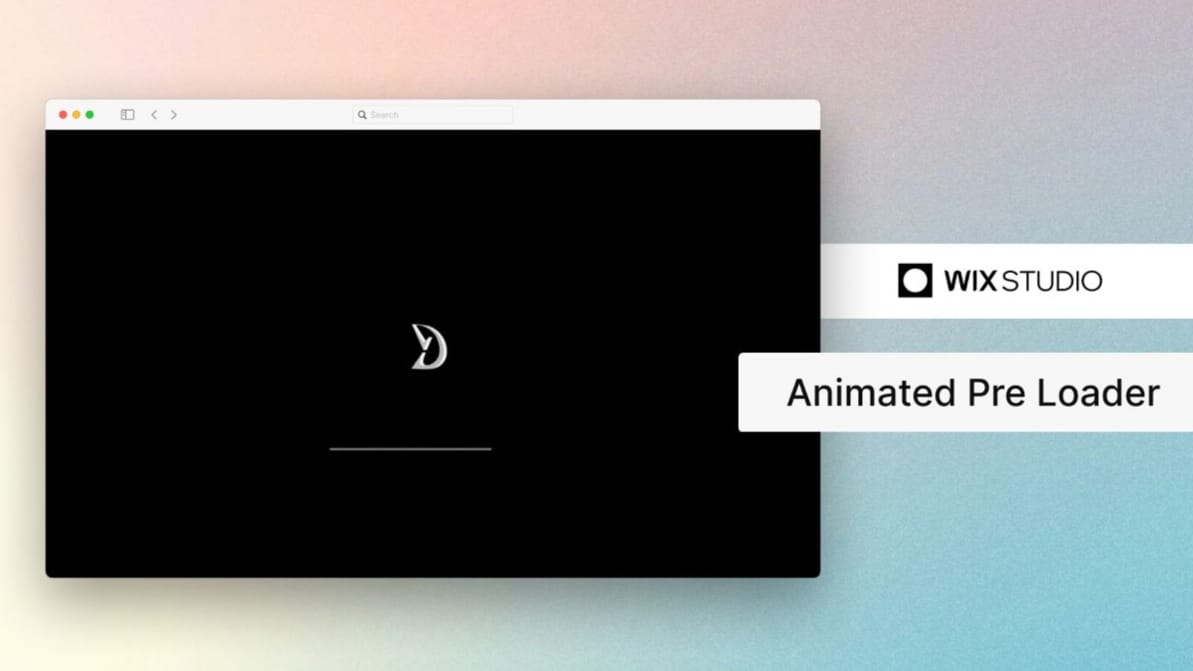
Want to make your website more engaging with a sleek preloader animation? In this guide, I’ll show you how to implement a custom preloader using Wix’s built-in tools and a bit of code. Let’s get started!
What You’ll Need
- A Wix website.
- A loopable animation or video (you can use Wix’s library or upload your own).
- Basic understanding of Wix’s editor.
Wix Studio Preloader Guide
Step 1: Create the Preloader Container
- Open your Wix editor and go to the page where you want to add the preloader.
- Add a Container element to your page.
- Resize the container to fit the entire screen.
- Rename the container’s ID to #PreLoader (this is important for the code to work).
- Pin the container:
- Click on the container.
- Go to the Position menu.
- Select Pinned to Page.
Step 2: Add a Loop Animation
- Inside the #PreLoader container, add a Video element.
- Choose a loopable animation:
- Use Wix’s built-in video library.
- Or upload your transparent video (e.g., a progress bar or logo animation).
- Adjust the video settings to loop seamlessly.
Step 3: Add the Preloader Code
- Go to the Page Code tab in your Wix editor.
- Paste the following code:
// Preloader code
$w.onReady(() => {
$w('#header').hide(); // Hide header
waitForLoading();
});
export function button_onClick() {
$w('#PreLoader').show();
waitForLoading();
}
function waitForLoading() {
setTimeout(() => {
$w('#PreLoader').collapse(); // Hide the preloader
$w('#header').show('fade'); // Show header
}, 3500); // Wait for miliseconds
}
Step 4: Customize the Code
- Change the duration: Adjust the 3500 value in the setTimeout function to match your video length or desired loading time.
- Hide additional elements: If you want to hide more elements (e.g., footer, buttons), duplicate the $w('#header').hide(); line and replace #header with the ID of the element you want to hide.
Pro Tips
- Use a transparent video for a modern look, or match the preloader container’s background colour to your video.
- For a progress bar animation, ensure the video length and code duration are perfectly synced.
- Experiment with different animations to match your website’s vibe.
Why Add a Preloader?
A preloader isn’t just visually appealing—it also improves user experience by giving visitors something to look at while your page loads. Plus, it’s a great way to showcase your creativity!
Final Thoughts
Adding a Wix Studio Preloader to your website is a simple yet effective way to elevate its design. With this guide, you can implement it in just a few steps. Try it out and let me know how it goes!
This kind of loading polish is one of the details our Motion & Interaction Design service handles on client builds.